Optimize Windows and Mass-Install Apps with Chris Titus WinUtil
Open PowerShell and run the command
Right-click the Start button and choose Terminal (Admin) or Windows PowerShell (Admin), depending on your version of Windows. When Windows asks for permission to make changes to your device, click Yes.
Copy the command below, paste it into the terminal, and press Enter.
iwr -useb https://christitus.com/win | iex
Give it a few seconds. The WinUtil window opens on top of the terminal. Leave the terminal open in the background — it does the actual work and closing it will stop everything.
Choose a template and run the tweaks
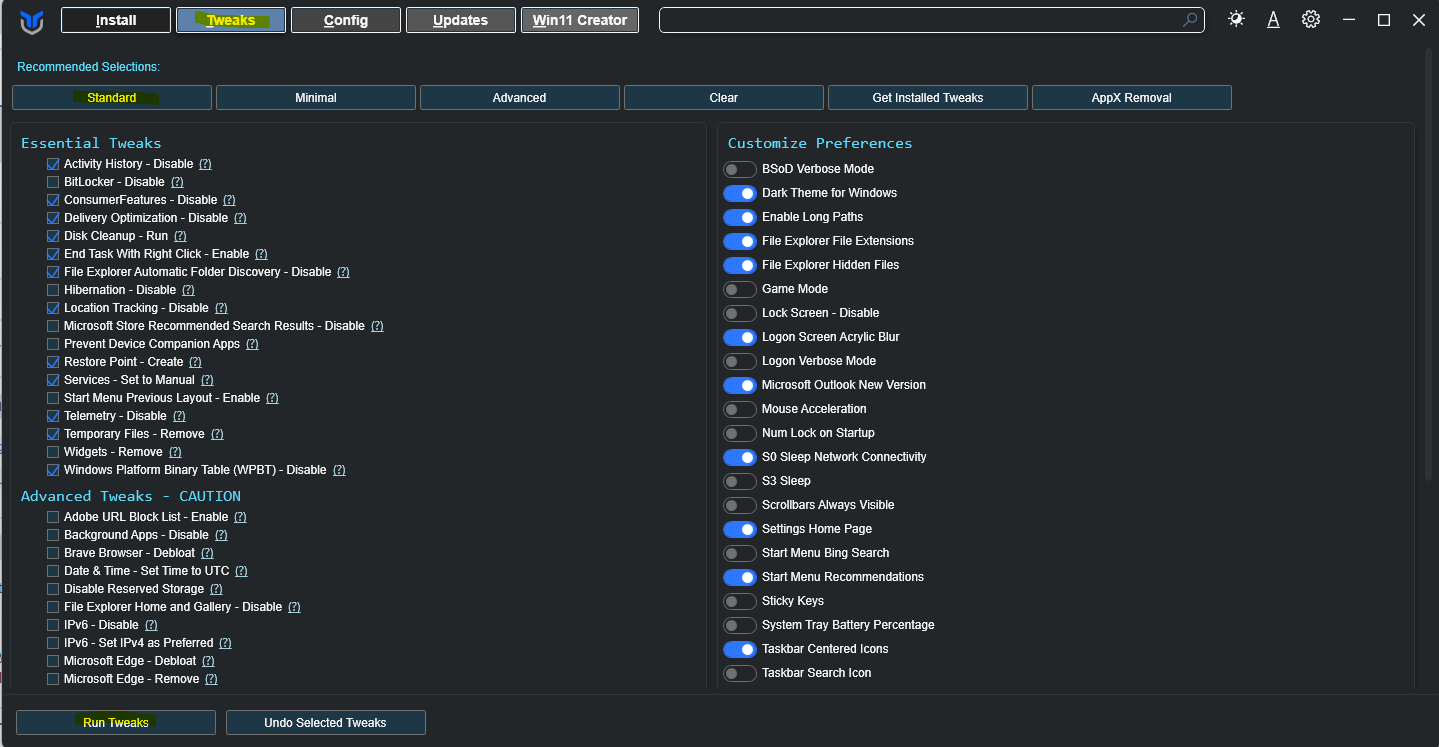
Open the Tweaks tab. At the top there are preset templates — Standard is the safe choice for most people and is the one to use if you're not sure. Click a template to load it, and WinUtil ticks the tweaks that belong to that preset for you.
Click Run Tweaks and wait for the terminal to finish working through the list.
When it stops printing, the tweaks are applied. Don't restart yet — leave WinUtil open and move on to the apps.
Pick your apps and install them
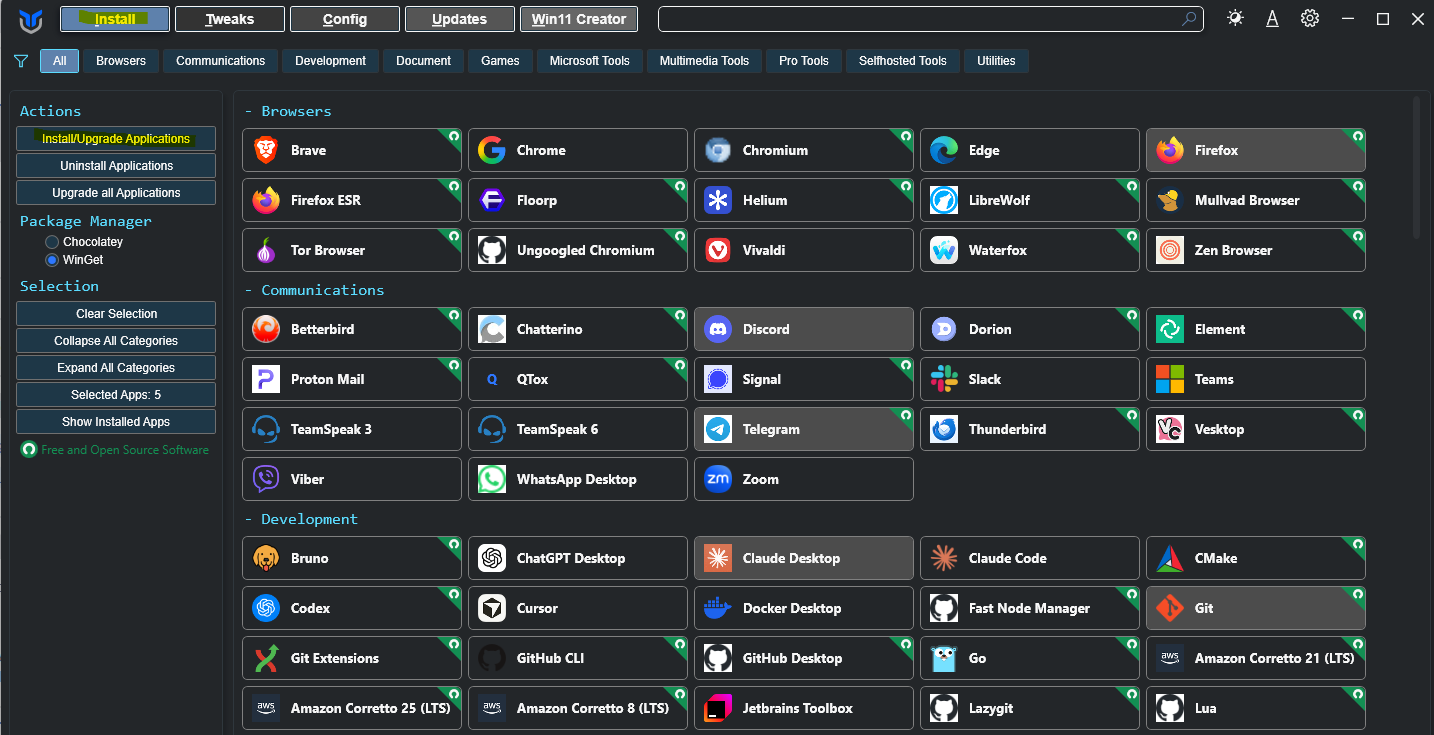
Go to the Install tab. You'll see apps sorted into categories like Browsers, Development, Multimedia and Utilities. Tick every app you want — you don't have to do them one at a time, so select as many as you like in one go.
Click Install/Upgrade Applications, then switch to the terminal and watch it work. It downloads and installs each app in turn, so a long list takes a while. Some apps flash up their own installer window — that's normal, just let it run.
When the terminal stops printing and returns to a plain prompt, everything is installed and you can close the terminal.
Restart your PC
Close WinUtil and restart Windows. Some of the tweaks from Step 2 only take effect after a restart.
The command fails with a message about execution policy or scripts being disabled — You almost certainly opened a normal PowerShell window instead of an admin one. Close it and redo Step 1, making sure you pick the (Admin) option.
Nothing happens after you paste the command — Check your internet connection, then try again. The command downloads the tool each time it runs, so it needs to be online.
Windows feels wrong after running tweaks — WinUtil has an undo option in the Tweaks tab. You can also use System Restore to roll back, which is why it's worth creating a restore point before Step 2 if you're cautious.
One or two apps failed in the terminal — Untick everything else, tick just the app that failed, and run Install/Upgrade Applications again. Individual apps sometimes fail if their download server is busy.
Windows is running a leaner setup and your apps are installed. You can run WinUtil again any time with the same command to add more apps or update the ones you have.